So I just finished migrating one of my sites from WordPress over to a static setup, and before I started, I asked a few friends who have been in the WordPress game for years what I should watch out for. They all said the same thing. Make a checklist.
So I made one. And I want to share it, because there are a lot of little things that can go wrong here, and missing even one of them can cost you traffic.
The thing is, a migration isn’t really about moving the content. That part is easy. It’s about making sure Google still sees the new site as the same site. If you get that wrong, your rankings can drop and it’s a pain to get them back. That’s what website migration SEO really comes down to, and this whole checklist is about one thing: don’t lose what you’ve already earned.
Here’s the list. I’ll go through each one.
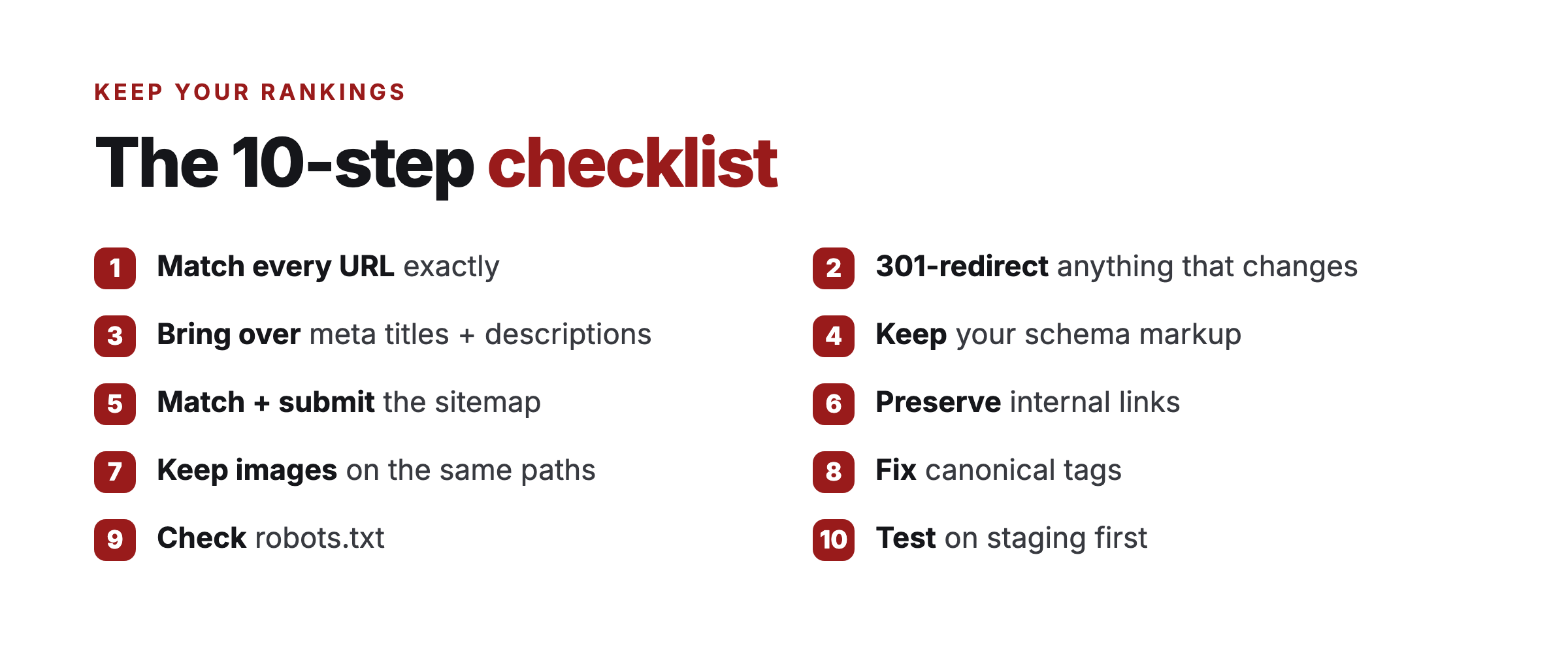
The 10-step checklist
1. Match every URL exactly. If your WordPress page lived at /how-to-keep-birds-away/, your new page needs the exact same path. This is the most important one. If the URLs don’t match, you lose rankings. Map them all out before you touch anything.
2. Set up 301 redirects for anything that changes. WordPress creates a lot of system URLs you might forget about: category pages, author pages, tag pages, feed URLs. Those all need to redirect to the right place. I had something like 30 of them on this site.
3. Bring over your meta titles and descriptions. Don’t let them reset to defaults. If you’ve spent time writing good titles and descriptions for SEO, make sure they come across exactly as they were.
4. Keep your schema markup. Any structured data you had, like FAQ schema or article schema, needs to be on the new site too. Google uses it, and dropping it can quietly hurt you.
5. Match your sitemap and submit it. Rebuild the sitemap to match the new structure, then submit it to Google Search Console the day you go live. Don’t wait.
6. Preserve your internal links. Every link between your posts and pages needs to still work. This one is easy to miss, because a broken internal link won’t show up until Google crawls it and tells you.
7. Keep your images the same. Same filenames, same alt text, same paths if you can manage it. Images pull in real search traffic, and if those paths change, you can lose a chunk of it without realizing.
8. Fix your canonical tags. Make sure every page points to itself, not back to the old WordPress URL. This one tripped me up. It’s easy to leave the old canonical in by accident.
9. Check your robots.txt. Don’t accidentally block something. I’ve seen migrations go live with the entire images folder blocked, and nobody noticed for weeks.
10. Test on a staging URL first. Don’t flip the DNS until you’ve checked everything on a staging version. Going live should be boring, because you already know it works.
How I organize the full migration
The checklist handles the SEO details. For the full project, I group the work into a process I call PRIME Migration:
- Prepare: map the current URLs, traffic, rankings, forms, analytics, redirects, DNS, and rollback options.
- Replicate: rebuild the first version as a faithful copy. Keep the content, URLs, layout, and important behavior stable.
- Inspect: compare old and new pages, then test metadata, schema, forms, links, mobile, analytics, and speed.
- Migrate: deploy, connect the redirects, verify the live site, submit the sitemap, and watch the first week closely.
- Evolve: improve the design, content, and AI-assisted workflows only after the migration is stable.
The order matters. First preserve what works. Then improve it.
How I actually did this
I used Claude Code to do most of the heavy lifting. I’d tell it what to check, and it would check. I’ve probably done ten passes comparing the old WordPress site to the new build, and each pass catches something the last one missed.
It’s still not perfect. There’s always something. But it gets you really close, really fast, and it’s a lot less painful than doing every comparison by hand.
The checklist is the short version. PRIME is the structure I use to keep the preparation, rebuild, checks, cutover, and later improvements in the right order when the project gets bigger.
What took longer than expected
I’ll be straight with you. I thought this would take a few days. It took a couple of weeks.
There were moments where I almost gave up. I’d rebuild a page and it wouldn’t match the WordPress version. The styling would be a bit off, something would be missing, I’d fix one thing and break another. It’s frustrating when you’re deep in it.
But I kept going, and eventually it came together. The trick that helped most was being conservative: I rebuilt the site as an exact replica of the old one first, so nothing looked different to a visitor or to Google. You can always improve the design later, once you know the traffic is safe.
What I check after launch
The migration is not finished when the homepage loads. During the first week I check:
- Old URLs return one permanent redirect to the right new page, not a 404 or a redirect chain.
- Canonical tags point to the live URL.
- The sitemap contains the canonical pages and Google Search Console accepts it.
- Forms, email links, analytics, and important conversion paths still work.
- Mobile pages look right and the main templates stay fast.
- Search traffic, rankings, indexing, and crawl errors do not show an unexpected drop.
I also keep the old WordPress setup available as a rollback option until the new site has proved stable.
Common questions
How long does a WordPress migration take? Longer than you’d think. I figured a few days and it took a couple of weeks. Budget more time than feels reasonable, especially on a bigger site, because the matching and testing is where it all goes.
Will I lose my rankings when I move? Only if you change too much. Get the website migration SEO basics right, the exact same URLs, 301 redirects, the same titles, descriptions and schema, and Google keeps treating it as the same site. On the moves I’ve done, the traffic held and then climbed.
Do I really need to redirect the old URLs? Yes. WordPress quietly creates category, tag, author and feed URLs, and those all need to 301 to the right place. Miss them and you leak link equity and leave dead ends for Google to find.
Can I do this myself? If it’s a smaller site and you’re comfortable getting technical, yes, take it slow and test on a staging URL first. If it’s a big site with real traffic, the more you rely on it, the more it pays to take your time, test carefully, and maybe get a hand with it.
Where it’s at now
On the automotive site that pushed me to formalize this process, traffic held after launch and later roughly doubled. The PageSpeed score moved from 66 to 97, and the homepage load time dropped from around 15 seconds to under one second. That is one case, not a guarantee, but it showed me that a careful migration can protect the old site while giving it a better technical base.
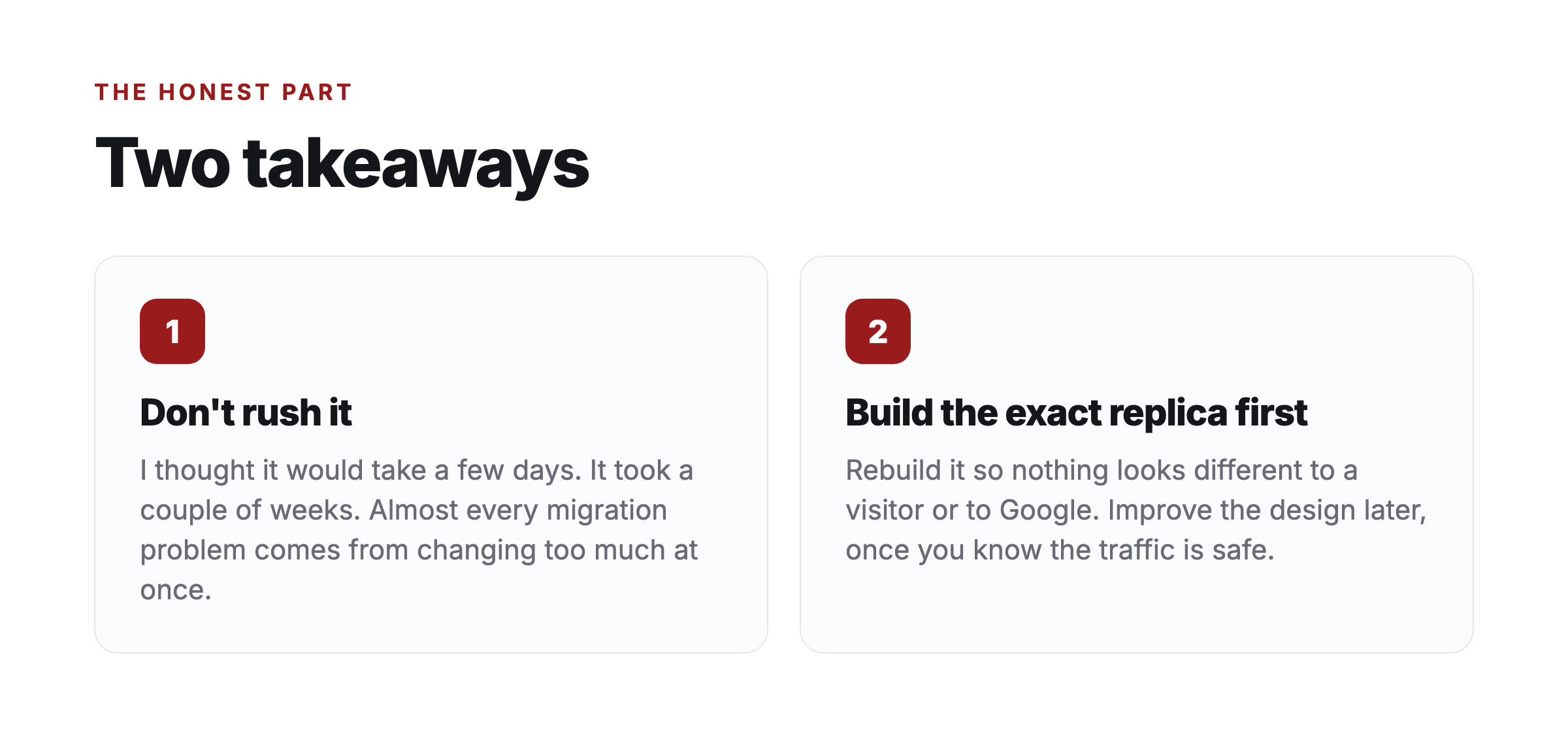
If I had to give you two takeaways: don’t rush it, and build the exact replica first. Almost every problem people have with migrations comes from changing too much at once.
If your WordPress site is slow and you’d rather not go through all of this yourself, this is the kind of thing I do for people.
What’s the part of moving off WordPress that worries you most? The redirects, the rankings, or just the whole idea of it? Let me know.