Most Hermes setup guides show you how to install the software. That is useful, but getting it installed was only the first step for me.
I wanted an AI assistant I could message from my phone. I wanted it to know what I was working on, where the useful files lived, and how to move a project forward without making me explain the whole business again.
At the same time, I did not want an AI publishing things, spending money, deleting files, or making important business decisions on its own.
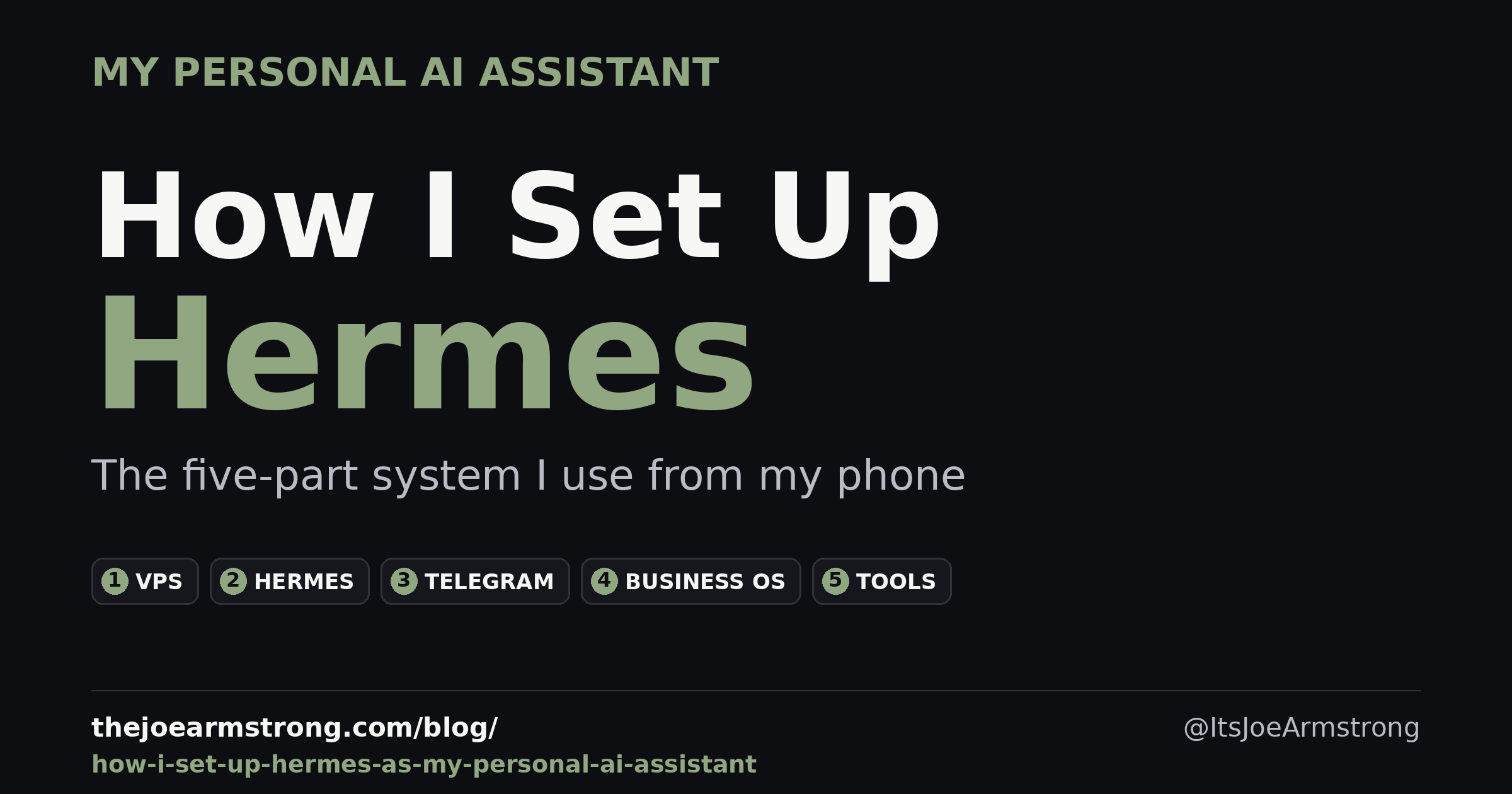
The setup I ended up with has five main parts. This is not the only way to use Hermes, and it will probably keep changing. It is simply the version that is working for me right now.
My setup at a glance
| Part | What I use | What it does |
|---|---|---|
| Always-on computer | Hostinger VPS | Keeps Hermes available when my laptop is off |
| Agent and model | Hermes plus an AI model | Handles the reasoning, memory, tools, and workflows |
| Control room | Telegram | Lets me talk to Hermes from my phone |
| Durable workspace | VPS-based Business OS plus GitHub | Keeps plans, scripts, notes, and decisions in durable Markdown files |
| Action layer | Google Workspace, GitHub, Vercel, Descript, and selected tools | Lets Hermes help with real work |
The simple step-by-step setup I would follow today
If I had to set Hermes up again from zero, this is the order I would use. Follow one step at a time. Do not connect every account or automate anything important on the first day.
These instructions work for Linux, macOS, or WSL2. I use an Ubuntu VPS because I want Hermes available when my laptop is off. If you only want to test it, your own computer is fine.
Step 1: choose the computer where Hermes will run
Pick one machine:
- Your Mac, Linux computer, or WSL2: easiest for testing, but Hermes stops when that computer is off.
- An always-on computer: useful if you already have one at home or in your office.
- A VPS: best if you want to reach Hermes from Telegram at any time. I use a Hostinger VPS.
For a VPS, choose a current Ubuntu image and make sure you can open its terminal or connect through SSH.
Success check: you can open a terminal on the computer where Hermes will live.
Step 2: create a separate non-admin user on a VPS
If you are installing on your own Mac or computer, skip this step.
On an Ubuntu VPS, I would run Hermes under a dedicated user without sudo access. This limits what the agent can change if a tool or command goes wrong.
Run this as the root user:
adduser hermesuserChoose a strong password when prompted. Do not add this user to the sudo group.
Then switch to the new user:
su - hermesuser
whoami
Success check: whoami prints hermesuser.
Step 3: install Hermes
Run the official installer as the user who will run Hermes:
curl -fsSL https://hermes-agent.nousresearch.com/install.sh | bashWhen it finishes, close and reopen the terminal if the hermes command is not found. Then check the installation:
hermes --versionSuccess check: the terminal prints a Hermes version instead of an error.
Optional: use Claude Code to help with the setup
If Claude Code is already installed on the target computer, paste this prompt into it:
Help me set up Hermes Agent on this computer using the official documentation:
https://hermes-agent.nousresearch.com/docs/

Work one step at a time. Inspect the system first and explain each action before running it. Do not use --yolo, disable approvals, or give the Hermes user sudo access. Never ask me to paste API keys, OAuth codes, passwords, or Telegram bot tokens into this chat. Stop when I need to complete an interactive login or enter a secret, and tell me exactly what to do myself. After installation, run hermes --version, hermes doctor, and hermes status --all. Do not connect extra tools or accounts yet.
Step 4: run the setup wizard and connect one AI provider
Start the guided setup:
hermes setupWhen the wizard asks about a model, choose one provider and complete its sign-in or API-key steps. Hermes supports OpenAI Codex, Nous Portal, Anthropic, OpenRouter, and other providers.
To connect OpenAI Codex
My setup uses OpenAI Codex through ChatGPT OAuth:
- Run
hermes model. - Choose OpenAI Codex.
- Choose ChatGPT OAuth and complete the browser sign-in.
- Return to the terminal and select the Codex model you want Hermes to use.
Check the saved Codex login with:
hermes auth list openai-codexDo not connect several providers just because they are available. One working model is enough for the first setup.
The official provider guide explains the other options.
Success check: Hermes shows a selected model, and hermes auth list openai-codex shows the saved login.
Step 5: check the installation and send one local test message
Run the health checks:
hermes doctor
hermes status --all
Fix any required errors reported by hermes doctor before moving on. Optional tools can wait.
Now test the model from the terminal:
hermes chat -q "Reply with exactly: Hermes is working."Success check: Hermes replies with Hermes is working.
At this point, Hermes and the AI model work. The next steps make it available from your phone.
Step 6: create a Telegram bot and get your user ID
Open @BotFather in Telegram.
- Send
/newbot. - Choose a display name, such as
My Hermes Assistant. - Choose a unique username ending in
bot. - BotFather will give you a bot token. Save it somewhere private.
Next, message @userinfobot. It will reply with your numeric Telegram user ID. Save that number too.
Your bot token is a password. Do not paste it into a normal Telegram conversation, a document, or GitHub. Enter it only when the Hermes setup wizard asks for it.
Success check: you have one bot token and your numeric Telegram user ID.
Step 7: connect Telegram and start the gateway
Back in the server or computer terminal, run:
hermes gateway setupChoose Telegram. Paste the bot token and your numeric user ID when prompted.
Test the gateway in the foreground first:
hermes gateway runOpen your new bot in Telegram and send:
Reply with exactly: Telegram is connected.If the bot replies, press Ctrl+C in the terminal to stop the foreground test. Then install and start the background service:
hermes gateway install
hermes gateway start
hermes gateway status
On an Ubuntu VPS, run this once as root so the user service stays active after you log out. Replace hermesuser if you chose a different username:
loginctl enable-linger hermesuserThe official Telegram setup guide includes screenshots and troubleshooting details.
Success check: hermes gateway status reports that the gateway is running, and the Telegram bot replies after you close the SSH connection.
Step 8: give Hermes one permanent work folder
Create one folder where useful work can live:
mkdir -p ~/business-os
cd ~/business-os
Create a small instruction file:
nano AGENTS.mdPaste something simple like this:
# Working rules

- Save useful work in this folder as Markdown files.
- Ask before publishing, spending money, deleting files, or sending messages.
- Use read-only access when it is enough for the job.
- Explain risky actions before taking them.
In nano, press Ctrl+O, then Enter to save. Press Ctrl+X to exit.
Start Hermes from that folder:
cd ~/business-os
hermes
Ask: What rules should you follow in this folder?
Success check: Hermes can summarize the rules from AGENTS.md.
Step 9: add only the tools needed for one real workflow
Open the tool manager:
hermes toolsStart small. For a research workflow, you might need web search and file tools. For website work, you might add GitHub later. Do not connect Google Drive, email, publishing accounts, and payment systems before you have a reason to use them.
After changing tools, start a new session with /reset in Telegram.
Give Hermes one contained job, such as:
Find three upcoming AI events in my city. Save the sources and notes in events.md. Do not publish anything. Send me a summary in Telegram when the file is ready.Success check: Hermes creates the file, reports what it did, and does not publish or message anyone else.
Step 10: set the safety rules before adding automation
Keep command approvals manual and secret redaction enabled:
hermes config set approvals.mode manual
hermes config set security.redact_secrets true
hermes gateway restart
Use read-only credentials whenever Hermes only needs to inspect something. Use Git branches and previews for website work. Require approval before publishing, sending customer messages, spending money, deleting data, or making a difficult-to-reverse change.
Only after one manual workflow works reliably would I add scheduled jobs, more integrations, or broader permissions.
Success check: you have one useful workflow, clear approval boundaries, and no unnecessary account access.
That is a complete first version. You now have Hermes running, one AI provider connected, Telegram working, a durable project folder, and one tested workflow.
My setup, and why I made these choices
The steps above are the setup order I would recommend. The rest of this article explains how my own system works and why I chose each part.
Why I use an always-on computer
Hermes needs somewhere to run. I use a VPS from Hostinger.
A VPS is basically a computer that I rent on the internet. Hermes runs there instead of depending on my laptop, so it stays available when my laptop is closed or I am somewhere else. It can also handle scheduled jobs without me leaving a computer running all day.
The VPS is not the intelligence. It is just the home where the assistant lives.
I also made one security choice early: Hermes runs under its own Linux user without sudo access. Root handles the system-level installation work. The Hermes user owns and runs Hermes but does not get unlimited control of the whole server.
That setup took a bit more care during installation because some system packages had to be installed separately as root. I preferred that over handing the agent permanent administrator access.
Hermes and the AI model are different pieces
The second part is Hermes itself, plus an AI model.
Hermes is the system around the AI. It connects the conversations, memory, files, tools, scheduled jobs, and approval rules. The model is the part doing the reasoning and writing.
You might also hear people talk about an AI provider. That just means the company supplying the model. Hermes supports different providers, so the model can change without rebuilding the whole assistant.
My setup currently uses OpenAI through Codex authentication. I do not think the specific provider is the main story here because models change quickly. The useful part is the system around the model and the business context it can work with.
A normal AI chat can answer a question. Hermes can take the next step by working with the files, tools, and instructions connected to the job.
Why Telegram is my control room
Telegram is how I talk to Hermes most of the time.
I can type a message, send a voice note, answer a question, review what it has done, or approve the next step from my phone. That is what makes it feel more like a personal assistant to me.
If I have an idea for a video, notice something on a website, or want research done, I can send the instruction when I think of it. I do not need to wait until I am back at my desk with five tabs open.
Telegram is the remote control. The actual work still happens on the server and inside the connected systems.
The Hermes gateway keeps Telegram connected. I also enabled systemd linger for the Hermes user so the gateway stays running after I log out of the server. The numbered setup section above shows the exact commands.
How memory and my Business OS work
The fourth part is where the useful information lives.
Hermes has persistent memory, and I also use structured holographic memory for facts and relationships that need to carry across sessions. Session search lets the agent find earlier conversations when we need to pick up old work.
I do not want every random chat detail saved forever. The useful things to keep are stable preferences, project rules, recurring decisions, and procedures that I would otherwise have to explain again.
For the bigger body of work, I use a simple Business OS made from Markdown files. Those files live in a permanent workspace on the VPS. Git and GitHub track the appropriate files and their history.
Obsidian is optional in my setup. I mainly use it on my phone for selected notes, such as video ideas. It is a convenient editor for Markdown, not the central memory system.
That keeps my plans, video ideas, scripts, project notes, and previous decisions out of old chat threads and in one place that both of us can work with.
This article is a good example. I sent a rough voice note through Telegram. Hermes organized the idea, checked the setup I was actually using, found an earlier video script on the same topic, and turned it into this article.
The simplest way I explain the arrangement is this:
Telegram is where we talk. My Business OS is where the useful work lives.
The tools I connected so Hermes can do real work
The fifth part is the action layer. These are the tools Hermes can use when I give it access.
My current setup includes:
- Web search and browser tools for research and checking live pages
- Terminal and file tools for working with code, folders, builds, and server processes
- GitHub for storing projects, reviewing changes, and keeping a history
- Vercel for website previews and approved deployments
- Google Workspace for selected Drive files, Docs, Sheets, email, and calendar work
- Descript for reading video projects and exporting transcripts
- Vision and image tools for checking screenshots and creating graphics
- Scheduled jobs for recurring research, reminders, and monitoring
- Delegated agents for isolated research or technical tasks
- Claude CLI and Fable when I want a specialist opinion on strategy, architecture, or a difficult review
Those exact tools will not make sense for everyone. Another business might use WordPress, Shopify, Notion, Airtable, or a CRM instead.
The point is to connect the tools your business already uses, one at a time, when there is a real job for them to do.
What I actually use it for
Three examples show how the pieces fit together.
Video planning and production
I can send a rough voice note from my phone, and Hermes can research the topic, organize the idea, turn it into a script, and save it in my Business OS.
After I record, the video goes into Descript. Hermes can work from the transcript to prepare title ideas, the description, thumbnail options, editing notes, and the team handoff. I still choose the angle, record the video, and approve the public result.
AI event research in Thailand
Hermes checks different event sources, removes duplicates, verifies details, and prepares updates for my Thailand AI Events page.
That saves me from checking the same sources manually every day. I still review important additions and changes before they are published.
Website work
I can request a website change through Telegram. Hermes finds the right files, prepares the update, runs the build and other checks, and shows me what changed.
For important work, the change stays on a branch or preview until I approve it. I do not give the agent a free pass to rewrite a live business site whenever it feels inspired.
What I still control
I generally want the following actions brought back to me before they happen:
- Publishing something publicly
- Sending customer-facing messages
- Spending money
- Deleting data
- Changing prices
- Giving a new tool access to private information
- Making a decision that would be difficult to reverse
I also avoid putting secrets in Telegram or GitHub. Credentials should be stored in the proper credential files or OAuth systems, and the access should match the job.
For example, I prefer read-only access when Hermes only needs to inspect something. For website work, I prefer a branch and preview instead of direct production changes. For scheduled jobs, I want a clear report and an approval step when the result affects the public site.
The goal is useful access with a limited blast radius if something goes wrong.
What I would not connect on the first day
I would not begin by connecting every account I own. I would leave email, payments, customer messaging, publishing accounts, and broad write access disconnected until one smaller workflow worked reliably.
A limited assistant that handles one real job is more useful than a large setup with twenty integrations nobody has tested.
How I got help with the initial setup
I did not build every technical part alone from scratch. I had help getting the foundation running, then kept customizing the memory, tools, workflows, Business OS, and approval rules around the work I actually do.
That experience changed how I think about setup. Installing Hermes gets the software running. The real setup is deciding what it should know, which tools it needs, what it can do automatically, and what should always come back to you.
If you enjoy the technical side, the official Hermes documentation is the best place to build it yourself.
Frequently asked questions
Do I need a VPS to use Hermes?
No. Hermes can run on a Mac, Linux computer, or WSL2. I use an Ubuntu VPS because it stays online when my laptop is off. The VPS is the permanent home for my Hermes setup, memory, and working files.
Where do Hermes memory and working files live?
My Hermes setup, persistent memory, and the working files it needs are on the VPS. Git and GitHub version the project files that need a history, but GitHub is not the everyday way I hand Hermes a file.
How do you use Hermes day to day?
Mostly through Telegram. I can message Hermes or attach a file from my phone. I use the terminal when I want to work directly with files on my computer or the VPS. GitHub is for version control in the projects that need it, not my main file bridge.
What is Obsidian used for?
Obsidian is for notes. It syncs those notes between my phone, computer, and VPS. It is not the main Hermes memory system or the place where I control Hermes.
Do you use Claude Code, Codex, or model APIs?
I use Claude Code. I use Codex through my ChatGPT subscription. I do not pay for model APIs in this setup.
Do you use the Hermes dashboard?
No. I use Telegram for most conversations and the terminal for direct server work. The dashboard is not required for my setup.
What does Hermes need approval for?
It depends on the workflow and the risk. I set approval rules case by case instead of giving every tool the same permissions. The important part is deciding those boundaries before automating the work.
The biggest difference for me is that I am not starting from zero every time I open an AI tool. I can send a short message from my phone, Hermes already knows where the work lives, and I still make the important decisions.